
How to Make the Gangnam Style AI Video With Your Own Photos (2026)
A step by step tutorial with screenshots: put you and two friends in the viral Gangnam Style AI trio, the night street selfie where three friends take turns at one front camera. What to upload, how to pick who you replace, what it costs and how to fix a result that looks off.
Short answer: open the Gangnam Style AI page, keep the original street clip, tap the face of the person you want to replace and add your photo, then add a photo for each friend if you want all three spots. Tap Generate and pay at checkout if you need a video. The landscape MP4 is ready in 3 to 8 minutes: the three of you take turns at the front camera on a city street at night, with the song. Prices and screens below were checked on October 31, 2026.
What the Gangnam Style AI Trend Is
The trend remakes a TikTok selfie video from October 2026. Three friends on a street in Gangnam, Seoul, at night, take turns leaning into one front camera to the 2012 PSY song: a grin, a hair flip, a finger pointed at the lens, a wink, then all three squeeze back into the frame. The original clip is 19 seconds long and filmed in landscape.
The AI versions keep the shots, the timing and the song and swap in someone else: three friends, a film trio in school robes, three people in matching red hoodies on a rooftop. People search for it as "Gangnam Style AI", "Gangnam Style trio", "Gangnam Style AI video generator" and "Gangnam Style selfie trend". They all mean the same three-person clip.
What You Need
- One to three photos. One per person, front facing, face fully visible, in good light. A phone selfie is fine, because the clip is close-up selfie footage and the faces matter most.
- Their OK. Everyone in the video should be an adult who agreed to be in it.
- Price. One video is $9.99, whatever its length and however many of the three you replace. The clip comes back as a 19 second, 720p MP4 with sound.
There is nothing to download, no CapCut template to search for and no prompt to write.
Step 1: Open the Gangnam Style AI Page
Go to the Gangnam Style AI page. The generator sits at the top with the original night street clip already loaded on the left, under "Tap a face to swap in your friend", and the examples beside it: the red hoodies, the school robes in the snow, the suits in Times Square and the rest.
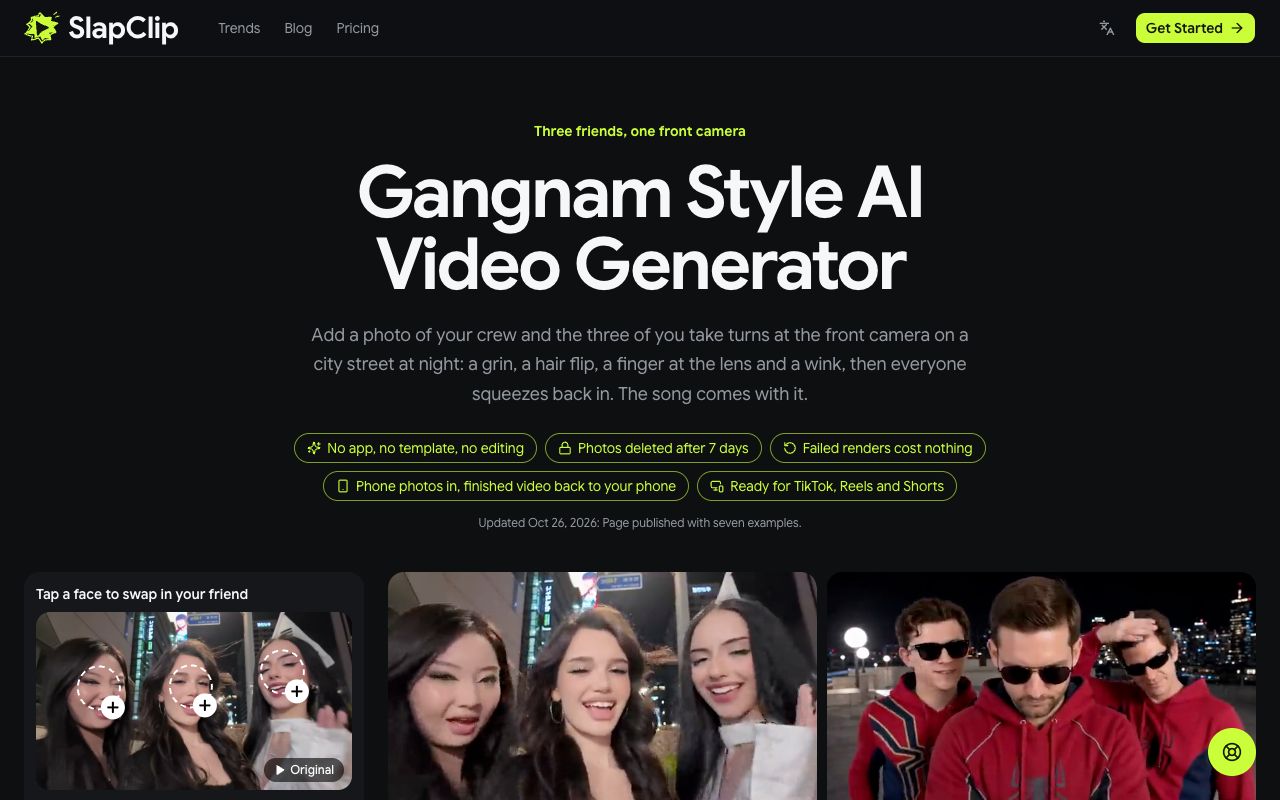
The tags under the title say what to expect: no app, no template, no editing; photos deleted after 7 days; failed renders cost nothing; phone photos in and the finished video back to your phone.
Step 2: Keep the Original or Pick an Example
Tap any example to open it. The dialog shows the clip, its length and the Recreate this button with the price. The original is listed first as "The Original", 19 seconds long, with no prompt needed.
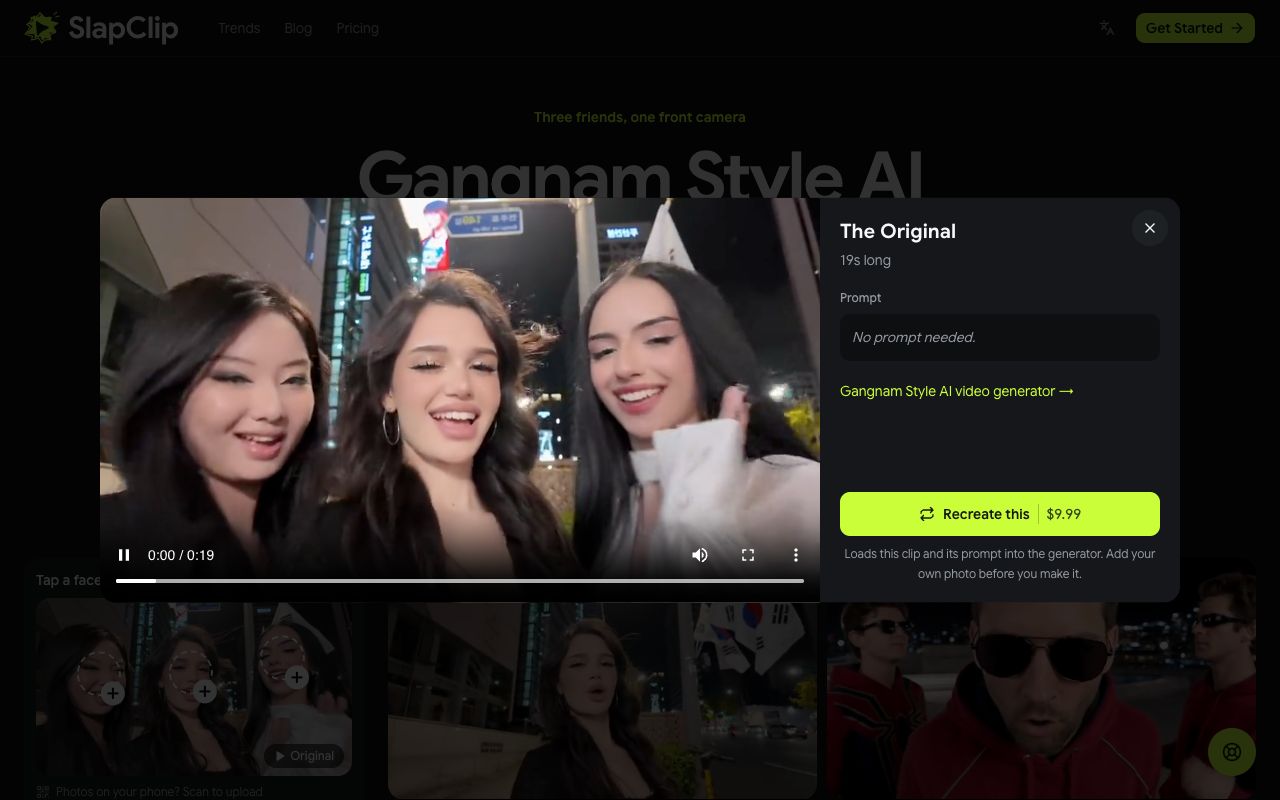
Tap Recreate this and that clip loads into the generator. The video you get keeps the look of the clip you pick, so pick the take you want to be in: the original street for a night out, the hoodies for a matching crew, the robes for a costume party.
Step 3: Tap a Face and Add Your Photo
The original clip appears as a still with a circle on each of the three friends: the girl in the middle, the girl on the left and the girl on the right. Tap the circle of the person you want to become and choose your photo. Do the same for each friend, one photo per person. On a computer you can tap Photos on your phone? Scan to upload and send the photos from your camera roll instead.
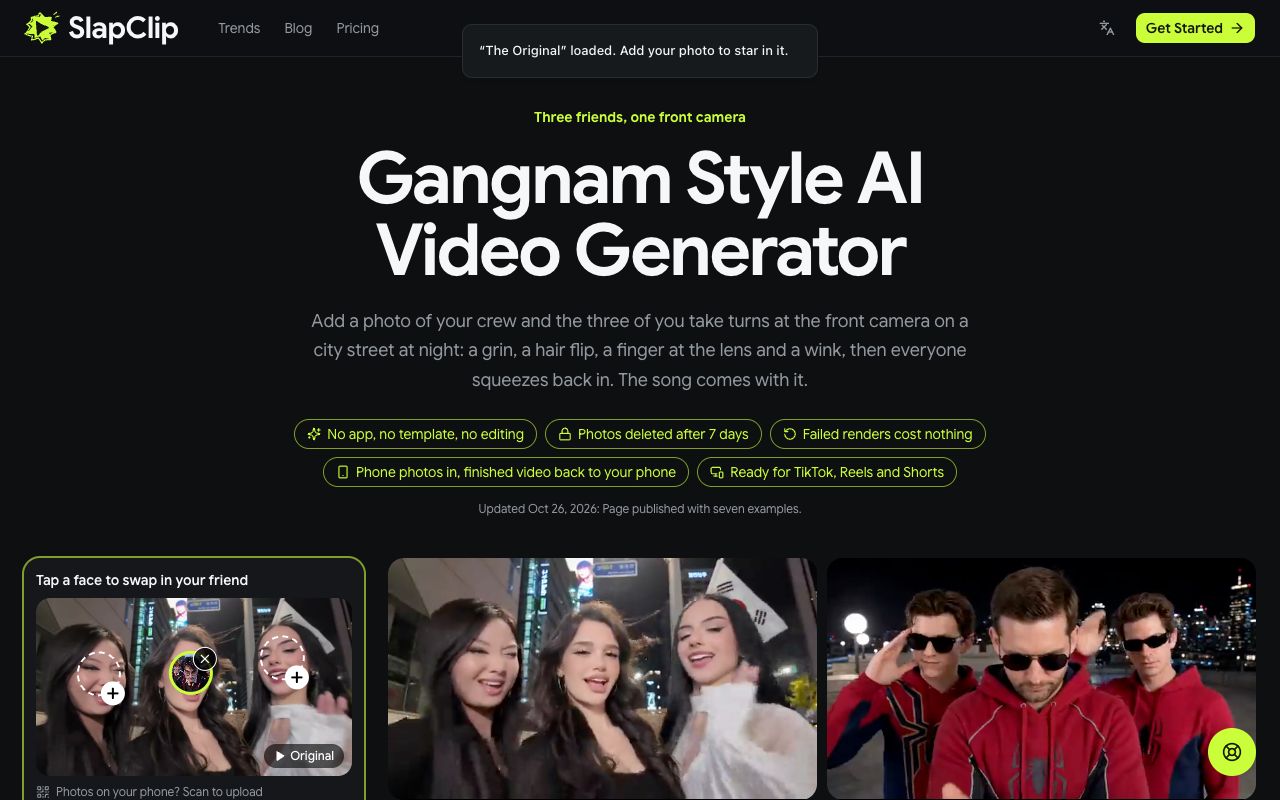
Any spot without a photo keeps its original person, so you can replace one, two or all three. Separate photos work better than one group shot. Leave Prompt off unless you want to change something, such as "matching red hoodies"; the clip already carries the street, the turns at the camera and the song.
Step 4: Generate
With your photos in place, tap Generate. If you are not signed in, a sign-in sheet opens first; if you have no videos left, checkout shows the price before anything is charged.
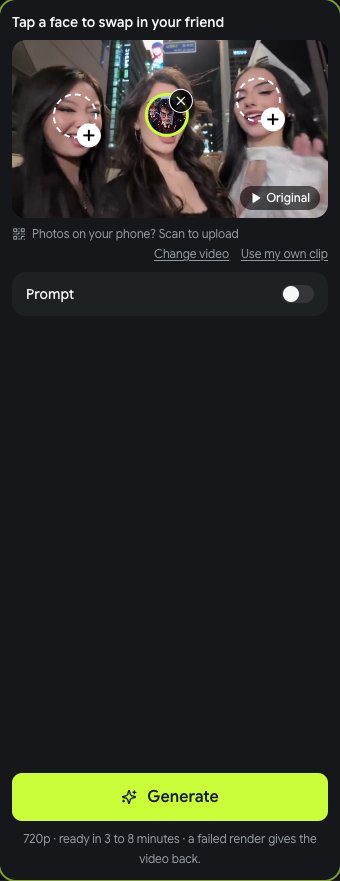
The line under the button says what you get: 720p, ready in 3 to 8 minutes, and a failed render gives the video back.
Step 5: Download and Post
Come back in 3 to 8 minutes and tap Download MP4. On a computer you can send the video straight to your phone with the code on the page. The file is landscape like the original, keeps the song and has no watermark, so post it on TikTok, Instagram Reels or YouTube Shorts as it is. Label it as AI-generated, which both platforms ask creators to do, and tag it #gangnamstyle so people find it.
If the Result Looks Off
- A face is not quite right. Use a sharper, front-facing photo in even light. No sunglasses, no hands on the face, no heavy filter. The clip is close-up selfie footage, so the face photo decides almost everything.
- The wrong person changed. Each photo goes to the circle you tapped. Check that every photo sits on the person you meant, then generate again.
- Two friends look alike. You used one group photo for everyone. Send one clear photo per person instead.
- The render failed. The video is returned to your account automatically. The status card says why; change the photo and try again.
What It Costs
One Gangnam Style AI video costs $9.99, whatever its length and whether you replace one person or all three. The 3-video pack is $24.99 ($8.33 a video) and the 7-video pack $49.99 ($7.14 a video). Packs are one-time purchases with no subscription, and the videos in them work on every trend.
Gangnam Style AI FAQ
Can I do it alone? Yes. Add only your own photo on the person you want to be; the other two stay as they are in the clip.
Do I need the CapCut template? No. The TikTok tutorials paste a link into CapCut and swap faces onto the sample three. Here the clip is loaded on the page, you add photos and the whole person is recast: face, hair and outfit.
Can I change the outfits or the place? Yes. Pick an example with the look you want and tap Recreate this, or switch on Prompt and describe it, such as suits in Times Square or school robes in the snow.
Can I use my own clip instead? Yes. Tap Use my own clip in the generator and upload an MP4 or MOV of up to 30 seconds; your photo goes into that clip instead.
How long does it take? 3 to 8 minutes for most renders. The video appears in My videos as soon as it is done, and you can leave the page while it renders.
See every trend on the trends page, or start in the generator.