
How to Make the AI Interview Karen Video With Your Own Photo (2026)
A step by step tutorial with screenshots: take the candidate seat in the AI Interview Karen video call, sneaker on your head, or recast Karen too. What to upload, what it costs and how to fix a result that looks off.
Short answer: open the AI Interview Karen page, the original 20 second video call is already loaded in the generator. Tap the candidate with the sneaker on his head in the bottom window and add one clear photo of you, add a second photo on Karen in the top window if you want to recast her too, then tap Generate. The finished MP4 is ready in 3 to 8 minutes with both windows, the sneaker and Karen's timing kept, and you in the chair. No webcam, no recording and no prompt. Prices and screens below were checked on November 20, 2026.
What the AI Interview Karen Trend Is
AI Interview Karen is a TikTok comedy series by creator Nick Reid (@itsnickreid). Each video is a vertical split screen: an AI job interviewer called Karen sits in the top window, and the candidate sits in the bottom one wearing a costume or with a sneaker balanced on his head. Karen introduces herself, asks for his name and slowly loses her patience. The series started on November 8, 2026, and the remakes and spin offs have been spreading on TikTok since.
People search for it as "AI Interview Karen", "AI Karen interview", "AI job interview Karen", "Karen AI interviewer" and "sneaker on head interview meme". They all mean the same clip. If you want the background first, read the AI Interview Karen meme explained.
What You Need
- One photo. A clear, front facing photo of you is enough to play the candidate. A head and shoulders shot works best, because both windows of the call are close webcam shots.
- A second photo, if you want. The frame has two faces you can tap: the candidate and Karen. Fill one or both; anyone you skip stays as they are.
- Nothing on your head. The sneaker comes from the original clip, so leave hats and hoods out of the photo.
- Price. The clip runs 20 seconds: 10 credits at 480p, 20 credits at 720p or 60 credits at 1080p. The cheapest pack is $9.99 for 15 credits, which covers the 480p version.
Step 1: Open the AI Interview Karen Page
Go to slapclip.com/ai-interview-karen. Under the headline and the four promises (no prompt, no watermark, photos deleted after 7 days, failed renders cost nothing) sits the generator with the original video call loaded: Karen in her red top fills the top of the frame, and a dashed ring marks her face.
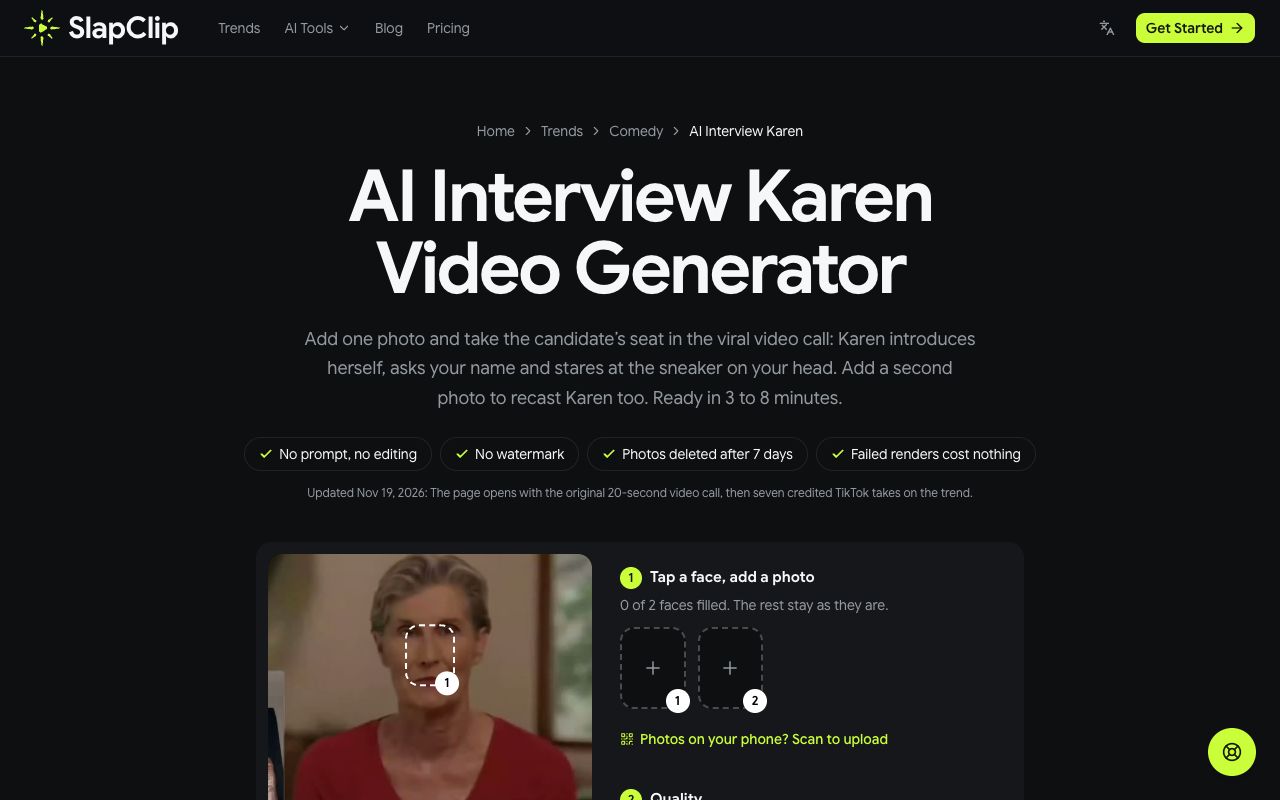
On the right, Tap a face, add a photo shows two empty slots and the line "0 of 2 faces filled. The rest stay as they are." Every AI Interview Karen video on the page is made from this one original clip, so there is no template to choose first.
Step 2: Watch a Take (Optional)
Below the generator is a wall of takes people posted on TikTok, each credited to its creator. Tap one to watch it full size. The panel on the right shows the creator, how long the take runs and the original clip next to it.
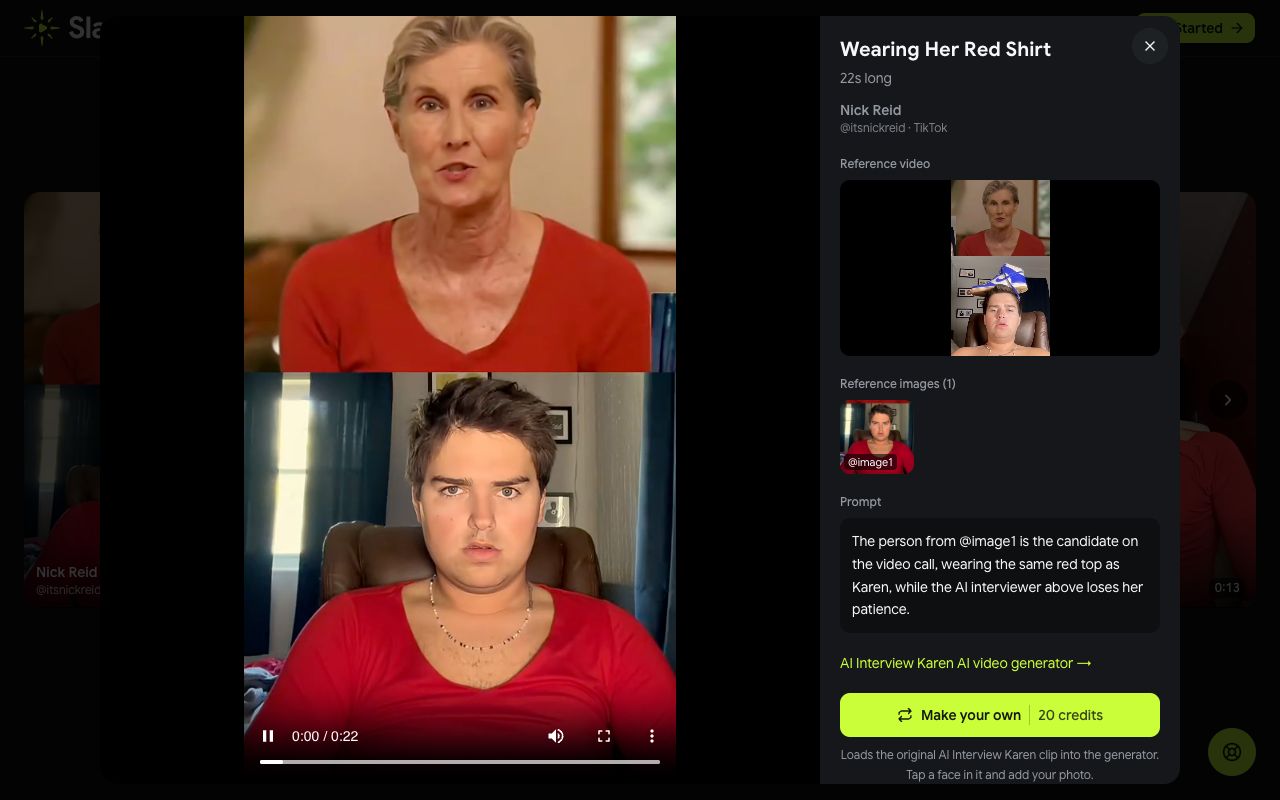
These takes are for watching. Tapping Make your own does not copy that take; it loads the same original video call into the generator, as the note under the button says. That keeps every result in the same split screen with the same sneaker gag.
Step 3: Tap the Candidate and Add Your Photo
Back in the generator (a small note confirms "The Original" is loaded), tap the candidate's face in the bottom window, under the blue and white sneaker, and choose a photo of you. Your photo appears right on his face with a numbered tag, and the counter changes to 1 of 2 faces filled.
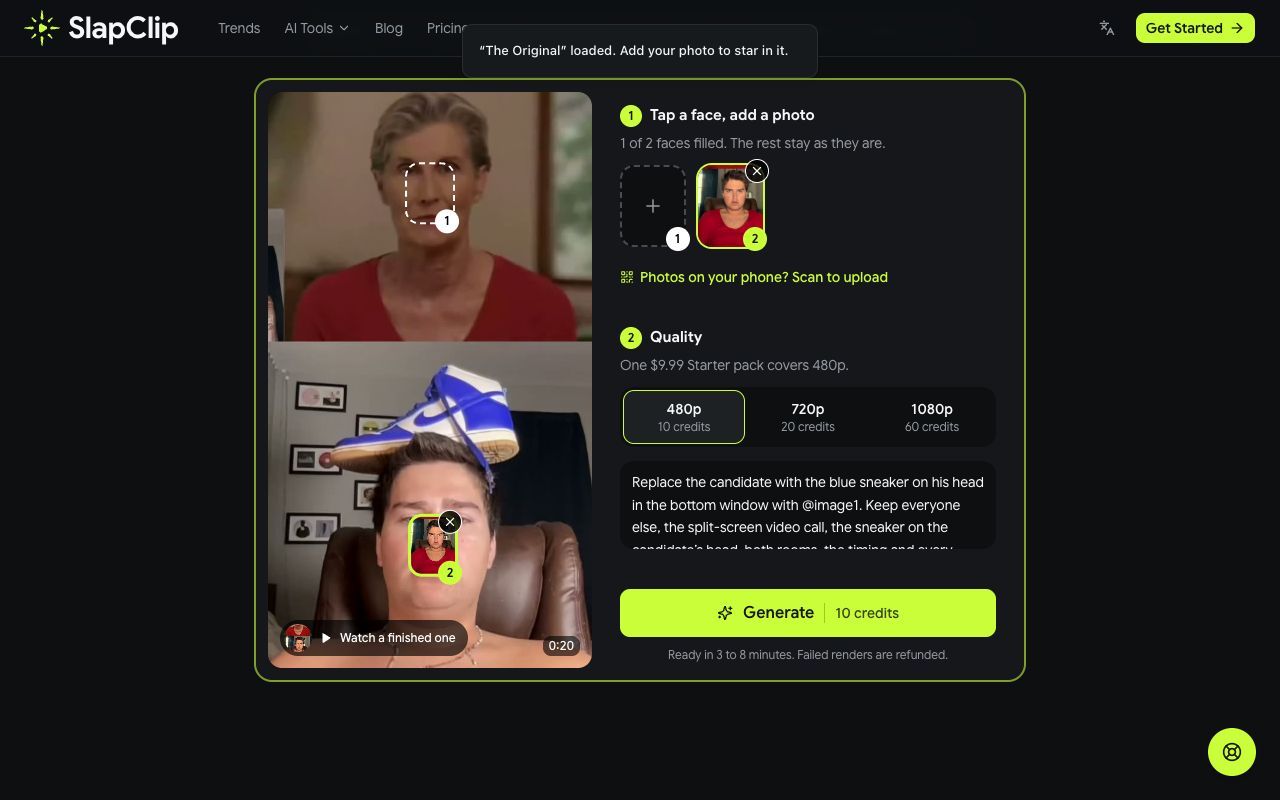
Want to play Karen instead, or cast a friend or your boss as her? Tap the ring on Karen's face in the top window and add a second photo. If you are on a computer and your photos are on your phone, use Photos on your phone? Scan to upload and pick them on the phone.
Step 4: Pick a Quality and Generate
Under Quality, choose 480p, 720p or 1080p. The generator starts on the sharpest size one Starter pack covers; for this 20 second clip that is 480p, and the line above the buttons says so. The Generate button shows the credits before anything is charged.
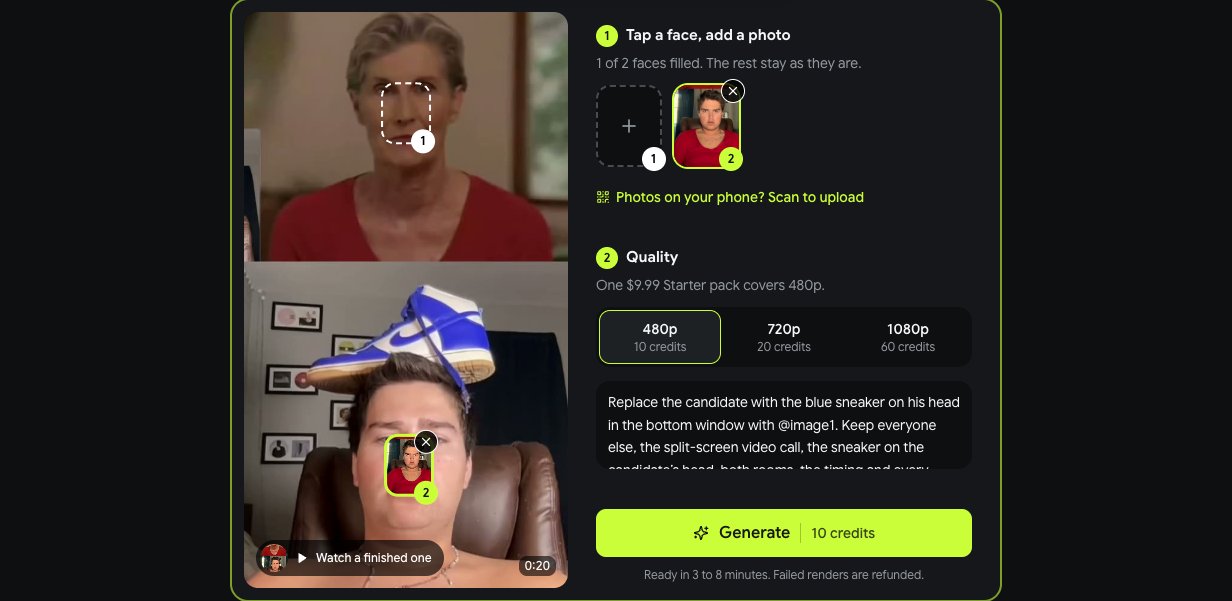
Tap Generate. Rendering takes 3 to 8 minutes, and you can leave the page while it runs. When it is done, download the MP4. On a computer, Get it on your phone opens the video on your phone so you can post it from there.
What It Costs
Credits come in one time packs with no subscription: 15 credits for $9.99, 45 for $24.99 and 100 for $49.99, and they last 12 months. A video costs 1 credit per second at 720p, half that at 480p and three times at 1080p, so the 20 second AI Interview Karen video is 10, 20 or 60 credits, whether you fill one face or two. If a render fails, the credits go back to your balance automatically. See all prices on the pricing page.
Tips for a Result That Looks Like You
- Face the camera. Both windows are straight on webcam shots, so a front facing photo matches best.
- Even light. Daylight or a bright room keeps your face clear in the close ups.
- One face per photo. A group photo makes it guess who goes where.
- Keep your head clear. No hat, hood or sunglasses; the sneaker is added by the clip.
- Dress for the joke. The outfit in your photo is the outfit in the video. A suit and tie makes the shoe on your head even funnier.
Fixing a Result That Looks Off
- The face does not look like you. Use a sharper, closer photo. Blurry or tiny faces are the usual cause.
- You ended up as Karen. Check which ring your photo sits on before you generate. Tap the x on the photo to remove it and add it on the candidate in the bottom window.
- Karen was not recast. Check that the counter says 2 of 2 faces filled before you tap Generate.
More Trends
Browse more on the trends page; every other trend works the same way in the generator.
Frequently Asked Questions
How do I make the AI Interview Karen video with my own face?
Open the AI Interview Karen page, tap the candidate in the bottom window, upload one clear photo of yourself and tap Generate. Your face replaces the man with the sneaker on his head while Karen stays in the top window.
Can I recreate the AI interviewer Karen video using just one selfie?
Yes. One front facing selfie is enough to play the candidate. A second photo is only needed if you also want to recast Karen.
Where can I upload a selfie and turn myself into the guy being interviewed by Karen?
On the AI Interview Karen page. The original video call is already loaded, so you only tap the candidate's face and upload your selfie, from a phone or a computer.
Can I make the Karen AI interview meme without recording a video of myself?
Yes. You only upload photos. The original 20 second clip provides the movement, the timing and Karen's lines, so you need no webcam, no interview app and no shoe of your own.
Can I play Karen instead of the candidate?
Yes. Tap Karen's face in the top window before adding your photo, and the candidate stays as he is. Add two photos to recast both.
Is the AI Interview Karen video a real job interview?
No. The series is staged comedy. Label your own version as AI generated when you post it, and do not present it as a real interview.