
How to Post the AI Interview Karen Video on TikTok, Reels and Shorts (2026)
Your AI Interview Karen video is a 20 second vertical MP4. How to post it on TikTok, Instagram Reels and YouTube Shorts: the format, the AI label, captions to write yourself, the tags people search, when to post and what to avoid.
Short answer: make the video on the AI Interview Karen page with one photo of you in the candidate's chair, then download the MP4. It is already vertical 9:16, 20 seconds long, with no watermark, so it uploads to TikTok, Instagram Reels and YouTube Shorts as it is. Before you post: turn on each app's AI generated label, write a short caption of your own that makes clear it is a joke, use the trend's own words in your tags and credit the original creator, Nick Reid (@itsnickreid). The video costs 10 credits at 480p or 20 at 720p. Steps and prices checked on November 23, 2026.
Why This Trend Works on Short Video
AI Interview Karen is a TikTok comedy series by Nick Reid, started on November 8, 2026. Each video is a split screen video call: Karen, an AI job interviewer in a red top, in the top window, and a candidate with a sneaker balanced on his head in the bottom one. Karen introduces herself, asks for his name and loses her patience.
That structure is built for a phone screen. The two windows fill a vertical frame top to bottom, the sneaker reads in the first second even with the sound off, and the whole thing is over before anyone thinks about scrolling. When your face is the one under the sneaker, your friends stop scrolling because they recognize you.
What You Get
- Vertical 9:16. The same shape as TikTok, Reels and Shorts, so nothing gets cropped.
- 20 seconds. The length of the original video call. All three platforms take that length without trimming.
- No watermark or app logo. Nothing to blur or crop out.
- No text on the video. There are no captions burned in, so you add your own in the app if you want them.
- Karen's lines and timing. The original call provides the movement, the timing and Karen's lines; only the faces change.
If you have not made it yet, the step by step tutorial covers every screen.
Step 1: Make and Download the Video
- Open slapclip.com/ai-interview-karen. The original video call is already loaded.
- Tap the candidate in the bottom window and add a clear, front facing photo of you. Leave hats off; the sneaker comes from the clip.
- Optional: tap Karen in the top window and add a second photo to recast her too. The two photo guide explains how.
- Pick a quality, check the credits on the Generate button and tap it. It usually takes 3 to 8 minutes.
- Download the MP4. On a computer, Get it on your phone sends it to your phone so you can post from there.
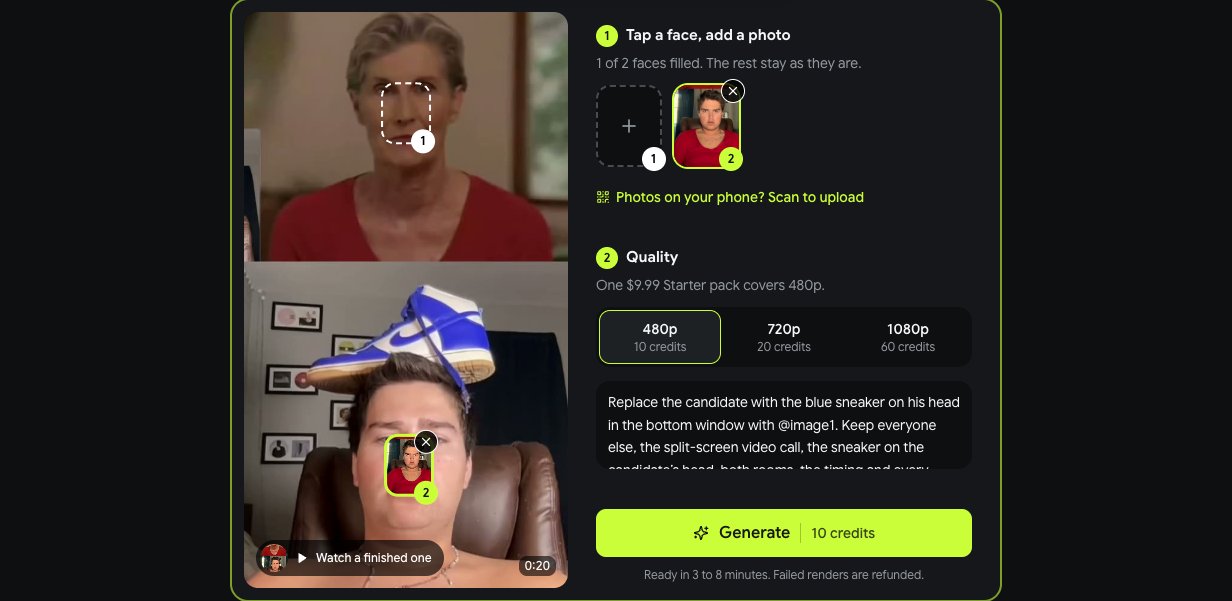
For posting, 720p is the sweet spot: it looks sharp on a phone and costs 20 credits. 480p (10 credits) is fine for a group chat or a test take.
Step 2: Upload It to Each Platform
TikTok. Tap +, choose Upload and pick the MP4. Keep the video's own audio, because Karen's lines are the joke. Skip filters and effects; they can distort the faces.
Instagram Reels. Tap +, choose Reel and pick the MP4. Check the cover frame: the moment when the sneaker and both faces are visible makes the best cover on your profile grid.
YouTube Shorts. Tap +, choose Create a Short, then upload the MP4 from your gallery. A vertical video this short is posted as a Short.
Post the same file everywhere. There is no need to make a separate version for each app.
Step 3: Turn On the AI Label
TikTok, Instagram and YouTube all ask creators to label realistic AI generated content. On TikTok it is the AI generated content switch under more options before you post. On Instagram it is the AI label in the advanced settings. On YouTube it is the altered or synthetic content question during upload.
For this trend the label matters more than usual. The video looks like a real video call, and the real story around it already confused people: fact checkers traced the clip where Karen says she is from Burger King to Nick Reid's skit series, and Burger King said it does not use such a tool. A label, plus a caption that is clearly a joke, keeps anyone from taking your version as a real interview.
Step 4: Write Your Own Caption
The caption is yours to write, and the best ones are short and specific. A few patterns that fit the bit:
- Name the job. "My interview for regional manager went great" over a video of you with a sneaker on your head.
- Play it straight. "I think I got the job." Nothing else.
- Make it about a friend. If you cast a friend as Karen, "When your best friend interviews you" sets up the joke.
- Keep it obviously fake. Do not name a real company as the employer or suggest it really happened.
- Credit the original. Add "original by @itsnickreid" so people can find the series that started it.
Keep it to one line. The video is 20 seconds; the caption should take two.
Step 5: Use the Words People Search For
On TikTok and Reels, hashtags and caption words work as search terms. Build yours from the names people actually type for this trend: "AI Interview Karen", "AI Karen interview", "AI job interview", "Karen AI interviewer" and "sneaker on head interview". Turn two or three of those into tags, add one broad comedy tag if you like, and stop there. A long wall of tags looks like spam and does not help.
Before you post, tap the trend's tag in TikTok search and look at what is posted under it this week. If the top posts are recent, the tag is still active.
Step 6: Post While the Trend Is Hot
The series started on November 8, 2026, and trends like this move fast. The best time to post is soon, not after you have perfected it. Within that, post when your own followers are around: your Instagram and TikTok insights show when your audience is most active.
If you made two versions, for example you as the candidate and a friend as Karen, then the roles swapped, post them a day apart. The second one gives people a reason to look at your profile again.
Mistakes to Avoid
- Posting other people without asking. Only use photos of adults who agreed, and tag them only if they are happy to be tagged. Casting your boss as Karen is funny only with their permission.
- Presenting it as real. No "this really happened to me". Label it and keep the caption a joke.
- Cropping the frame. The split screen needs both windows. Do not zoom in on just one.
- Adding a different song. It buries Karen's lines, which carry the whole video.
- Using a hat in your photo. The sneaker sits on your head in the clip; a cap in your photo fights with it.
What It Costs
Credits come in one time packs with no subscription: 15 credits for $9.99, 45 for $24.99 and 100 for $49.99. A video costs 1 credit per second at 720p, half that at 480p and three times that at 1080p, so the 20 second AI Interview Karen video is 10, 20 or 60 credits, whether you fill one face or two. If a render fails, the credits go back to your balance automatically.
More trends to post this week are on the trends page, and the generator recasts your own clip too.
Frequently Asked Questions
What format is the AI Interview Karen video?
A vertical 9:16 MP4, 20 seconds long, with no watermark. It uploads to TikTok, Instagram Reels and YouTube Shorts without cropping or trimming.
Do I need to label it as AI generated?
Yes. All three platforms ask creators to label realistic AI content, and this video looks like a real video call. Turn on the label and keep the caption clearly a joke.
Should I tag Nick Reid?
Crediting the original creator is good practice. Writing "original by @itsnickreid" in the caption points people to the series that started the trend.
Can I add my own text on the video?
Yes. The video has no burned in text, so you can add a line with TikTok's or Instagram's text tool. Keep it short and away from the faces.
Which resolution should I post?
720p, at 20 credits. It looks sharp on phones. 480p, at 10 credits, works for a group chat or a first test with your photo.
Can I post it with my friend as Karen?
Yes, if your friend agreed. Add their photo on Karen in the top window, yours on the candidate, and tag them in the post if they are happy with that.